

WhatsApp Blue Tick: How to Get Verified on Cloud API (2026)
Step-by-step guide to getting the free verified blue tick (Official Business Account) on WhatsApp Cloud API — and how it differs from the paid Meta Verified plan. Backed by official Meta docs.

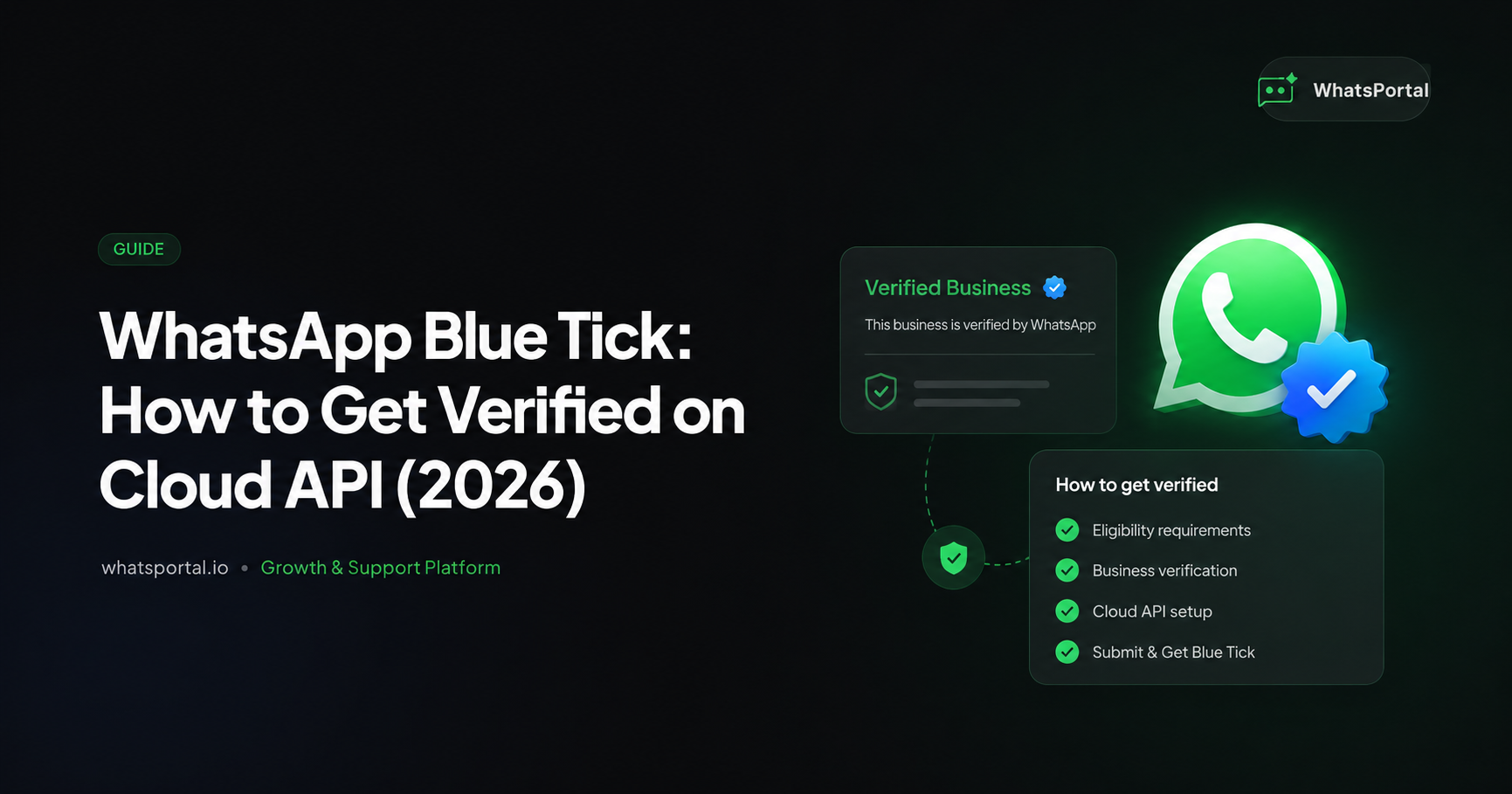
Your customers get dozens of WhatsApp messages from businesses every week. Most get ignored. Some get reported as spam.
The difference between "who is this?" and "oh, it's them" often comes down to one tiny symbol: the verified blue tick next to your business name.
Here's the part most guides get wrong: on the WhatsApp Cloud API, the blue tick is completely free. You don't pay Meta a single rupee for it. What you do need is to meet five specific requirements published in Meta's official documentation — and to know the difference between this free badge and Meta Verified, the paid subscription that many businesses confuse it with.
This guide covers the entire process, sourced exclusively from official Meta, Facebook, and WhatsApp documentation.
1. What Is the WhatsApp Blue Tick?
The blue tick on WhatsApp is the badge of an Official Business Account (OBA).
According to Meta's official documentation, an Official Business Account is "a business phone number owned by a business that has been verified as an authentic business". Once granted, the number displays a blue checkmark beside its name in the contacts view — visible to every customer who opens a chat with you.
Wasn't it a green tick before? Yes. WhatsApp historically used a green checkmark for verified businesses. In 2024, Meta unified its verification badges across Facebook, Instagram, and WhatsApp — and the green tick became blue. If you see older articles talking about the "green tick," they're describing the same OBA badge.
Two things the blue tick is not:
- It is not the grey double-tick or blue double-tick on individual messages (those are delivery and read receipts).
- It is not automatically included with API access. Every business on the Cloud API starts as a standard Business Account, and must separately request OBA status.
2. Blue Tick (OBA) vs Meta Verified: What's the Difference?
This is where most businesses get confused — and where some vendors quietly upsell. These are two different products.
| Official Business Account (Blue Tick) | Meta Verified for Business | |
|---|---|---|
| What it is | A free status granted to authentic businesses on the WhatsApp Business Platform | A paid monthly subscription from Meta |
| Cost | Free | Starts around US$14.99/month, with higher tiers (Plus, Premium, Max) |
| Where it applies | WhatsApp Business Platform / Cloud API numbers | Primarily the WhatsApp Business app (small business product) |
| How you get it | Submit a request in WhatsApp Manager after meeting Meta's 5 eligibility requirements | Subscribe from within the app's settings, where available |
| What you get | Blue checkmark + appearance in WhatsApp in-app search | Blue checkmark + impersonation protection + enhanced account support + premium features |
| Approval | Reviewed by Meta; can be rejected (30-day cooldown to reapply) | Granted with active subscription, subject to eligibility |
| Availability | Global, wherever the WhatsApp Business Platform operates | Select countries only, rolling out gradually |
The short version:
- On the Cloud API (the setup you use with WhatsPortal), the blue tick comes from the free OBA request process. You cannot "buy" it — and per Meta's official OBA documentation, you don't need to.
- Meta Verified is a subscription bundle described in the WhatsApp Help Center. It targets small businesses on the WhatsApp Business app and bundles the badge with support and anti-impersonation tooling.
Key insight: If a provider tells you the blue tick on the WhatsApp API costs a monthly fee, they are describing Meta Verified — a different product for a different audience. The OBA blue tick for API numbers has no price tag. Your only "cost" is meeting Meta's requirements.
3. The 5 Official Eligibility Requirements
Meta publishes exactly five requirements for OBA eligibility in its Official Business Accounts documentation. Your business phone number must satisfy all of them before submitting a request:
-
Comply with the WhatsApp Business Messaging Policy. Your messaging behavior — opt-ins, content, frequency — must follow the WhatsApp Business Messaging Policy. Numbers flagged for policy violations are not eligible.
-
Be registered on the WhatsApp Business Platform for at least 30 days. Brand-new numbers cannot apply. Meta wants to see an established, active presence before granting the badge.
-
Complete Meta Business Verification. The business portfolio (Business Manager account) that owns your WhatsApp Business Account must pass Business Verification — Meta's process of confirming your legal business entity using official documents.
-
Enable two-step verification on the phone number. The business number must have two-step verification (a 6-digit registration PIN) turned on.
-
Have an approved display name. Your display name — the business name customers see — must already be reviewed and approved by Meta, and must accurately represent your business.
Watch out: Meeting all five requirements makes you eligible to apply — it does not guarantee approval. Meta reviews each request and does not publish its full internal approval criteria. Historically, brand recognition and notability have influenced outcomes, but Meta's documentation does not commit to specific thresholds.
4. Step-by-Step: How to Apply for the Blue Tick
Step 1: Complete Meta Business Verification
This is the longest step, so start here.
- Open Meta Business Suite → Settings → Security Center.
- Click Start Verification under Business Verification.
- Confirm your business details — legal name, address, phone number, and website.
- Upload official documentation (e.g., certificate of incorporation, GST/tax registration, utility bill — requirements vary by country, as listed in the Business Verification help article).
- Verify your connection to the business via email, phone, or domain verification.
Verification review times vary — plan for days, not minutes.
Step 2: Get your display name approved
Your display name is submitted when you register your number on the platform. Make sure it:
- Matches your real business name (the same one on your verification documents)
- Follows Meta's display name guidelines (no ALL CAPS stuffing, no extra keywords, no taglines)
If your display name was already approved during onboarding, you're set.
Step 3: Enable two-step verification
If you registered your number through a platform like WhatsPortal, two-step verification (the 6-digit PIN) is typically set during registration. You can confirm in WhatsApp Manager → Phone numbers → Settings → Two-step verification.
Step 4: Wait out the 30-day tenure (and use it well)
Your number must be at least 30 days old on the platform. Use this time to build a clean track record:
- Send messages only to opted-in users
- Keep your quality rating healthy (avoid blocks and reports)
- Maintain an active, complete business profile — logo, description, website, address
Step 5: Submit the OBA request in WhatsApp Manager
Per Meta's documented process:
- Open WhatsApp Manager and go to the Overview section.
- Select your business phone number.
- Navigate to Phone numbers → Profile → Official business account.
- Click Submit Request.
That's it. No payment screen — because there is no payment.
Step 6 (Optional): Check your status via the API
Developers can check OBA status directly through the Graph API:
curl 'https://graph.facebook.com/v25.0/<PHONE_NUMBER_ID>?fields=official_business_account' \
  -H 'Authorization: Bearer <ACCESS_TOKEN>'
The response includes an oba_status field (for example, NOT_STARTED before you've applied), so you can track the request programmatically.
5. What Happens After You Apply
According to Meta's documentation, after submission "you will receive a notification letting you know if your business phone has been granted OBA Number status or not."
If approved: the blue checkmark appears beside your display name in customers' contact views — no further action needed.
If rejected: you must wait 30 days before submitting another request. Use that window to strengthen your case:
- Ensure your display name exactly matches your brand as it appears publicly
- Grow your legitimate, opted-in messaging volume and keep quality ratings high
- Make sure your business has a consistent public footprint (website, business listings) that matches your verified details
Meta does not publish a rejection-reason breakdown, so treat each cooldown as an opportunity to remove every possible doubt about authenticity.
6. What the Blue Tick Actually Gets You
Discoverability in WhatsApp search
This is the most concrete, officially documented benefit: per Meta's docs, if a business phone number is not an OBA, "it will not appear in search results when users search for it within the WhatsApp application." With the blue tick, customers can find your business by searching your name inside WhatsApp — even if they never saved your number.
Instant trust at the top of every chat
Every message you send — an order update, a payment reminder, a marketing broadcast — arrives under a name with a blue checkmark. Customers know it's really you, not an impersonator. For industries where impersonation scams are rampant (banking, logistics, government services), this materially affects reply rates.
A signal of standing with Meta
The badge tells customers — and your own team — that Meta has reviewed your business and vouches for its authenticity. It's the WhatsApp equivalent of a verified profile on any other major platform.
Key insight: The blue tick does not change your pricing, your messaging limits, or your API capabilities. Those are governed separately by your quality rating and messaging tier. The blue tick is a trust and discoverability layer — nothing more, nothing less.
7. Common Reasons OBA Requests Fail
Mapped directly against Meta's five published requirements:
| Failure Point | What Went Wrong | Fix |
|---|---|---|
| Business Verification incomplete | Portfolio was never verified, or documents didn't match the business name | Finish verification in Security Center with consistent legal documents |
| Display name mismatch | Display name differs from the brand's public identity or violates naming guidelines | Update and re-submit the display name before reapplying |
| Policy violations | Messaging flagged under the Business Messaging Policy (spam reports, non-opted-in sends) | Clean up opt-in flows; rebuild quality rating before the next attempt |
| Number too new | Applied before 30 days on the platform | Wait out the tenure period while building good messaging history |
| Two-step verification off | Registration PIN never enabled | Enable it in WhatsApp Manager settings |
Conclusion: Free Badge, Real Work
The verified blue tick on WhatsApp Cloud API costs nothing — but it's earned, not bought. The path is clearly documented by Meta: verify your business, keep your messaging clean for 30+ days, lock down your number with two-step verification, get your display name approved, and submit the request through WhatsApp Manager.
And if anyone offers to sell you the API blue tick, you now know better: the paid product is Meta Verified, a separate subscription for the WhatsApp Business app — not the badge on your API number.
Ready to build the kind of professional WhatsApp presence that passes Meta's review? Sign up for a free WhatsPortal account — get your number on the official Cloud API, keep your quality rating healthy with opt-in-first automation, and apply for your blue tick from a position of strength.
Frequently Asked Questions (FAQs)
Is the WhatsApp blue tick free?
Yes — on the WhatsApp Business Platform (Cloud API), the blue tick is granted through the free Official Business Account (OBA) request process in WhatsApp Manager. Meta charges nothing for it. The paid product with a badge is Meta Verified, a separate subscription primarily for the WhatsApp Business app.
What's the difference between the blue tick and Meta Verified?
The blue tick (OBA) is a free authenticity status for businesses on the WhatsApp Cloud API, granted after Meta reviews your request. Meta Verified is a paid monthly subscription (starting around US$14.99/month) for the WhatsApp Business app that bundles a verified badge with impersonation protection, enhanced support, and premium features. Different products, different audiences.
Did WhatsApp replace the green tick with a blue tick?
Yes. WhatsApp's verified badge was historically green. In 2024, Meta standardized verification across Facebook, Instagram, and WhatsApp, and the badge became blue. The underlying Official Business Account status works the same way.
What are the requirements to get the blue tick on WhatsApp Cloud API?
Meta's documentation lists five: (1) compliance with the WhatsApp Business Messaging Policy, (2) at least 30 days registered on the WhatsApp Business Platform, (3) completed Meta Business Verification for your business portfolio, (4) two-step verification enabled on the phone number, and (5) an approved display name.
How do I apply for the blue tick?
In WhatsApp Manager: go to Overview, select your business phone number, then navigate to Phone numbers → Profile → Official business account and click Submit Request. You'll be notified whether your request was approved or denied.
How long does blue tick approval take?
Meta doesn't publish a fixed review timeline for OBA requests. Business Verification (a prerequisite) typically takes a few business days depending on your documents and country, and the OBA review happens after you submit the request. You'll receive a notification with the outcome.
What happens if my blue tick request is rejected?
Per Meta's official documentation, you must wait 30 days before submitting another request. Use that time to strengthen your business's public footprint, keep your quality rating high, and ensure your display name and verification documents are consistent.
Does the blue tick increase my messaging limits?
No. Messaging limits and tiers are governed by your phone number's quality rating and sending history — not by OBA status. The blue tick affects trust and discoverability, not capacity or pricing.
Can customers find my business in WhatsApp search without a blue tick?
Generally, no. Meta's documentation states that a business phone number without OBA status will not appear in search results when users search inside the WhatsApp application (unless the user has already saved your contact). The blue tick unlocks in-app search visibility.
Is Meta Verified available for WhatsApp Cloud API numbers?
Meta Verified for Business on WhatsApp is offered primarily through the WhatsApp Business app and is available in select countries. For Cloud API numbers, the path to a verified badge is the free OBA request — you don't need a Meta Verified subscription to get the blue tick on the API.
Do I need a minimum number of messages or customers to qualify?
Meta's published requirements don't include a message-volume threshold. However, the number must be at least 30 days old on the platform and compliant with the Business Messaging Policy, and Meta reviews each request against internal criteria it doesn't fully disclose — an active, clean messaging history helps.
Official Sources
All facts in this article are sourced from official Meta, Facebook, and WhatsApp documentation:
- Official Business Accounts — Meta for Developers
- WhatsApp Business Accounts Overview — Meta for Developers
- About Meta Verified for Business on WhatsApp — WhatsApp Help Center
- About Verified Business Accounts — WhatsApp Help Center
- Verify Your Business in Meta Business Suite — Meta Business Help Center
- Two-Step Verification — Meta for Developers
- WhatsApp Business Messaging Policy
Start messaging smarter
WhatsPortal makes WhatsApp Business API simple for your whole team.
Get started free