

Your First Hour on WhatsPortal: A Setup Guide for Complete Beginners
Never touched the WhatsApp Business API before? Here is the whole setup, start to finish, in plain language — from signing up to sending your first message to a real customer.
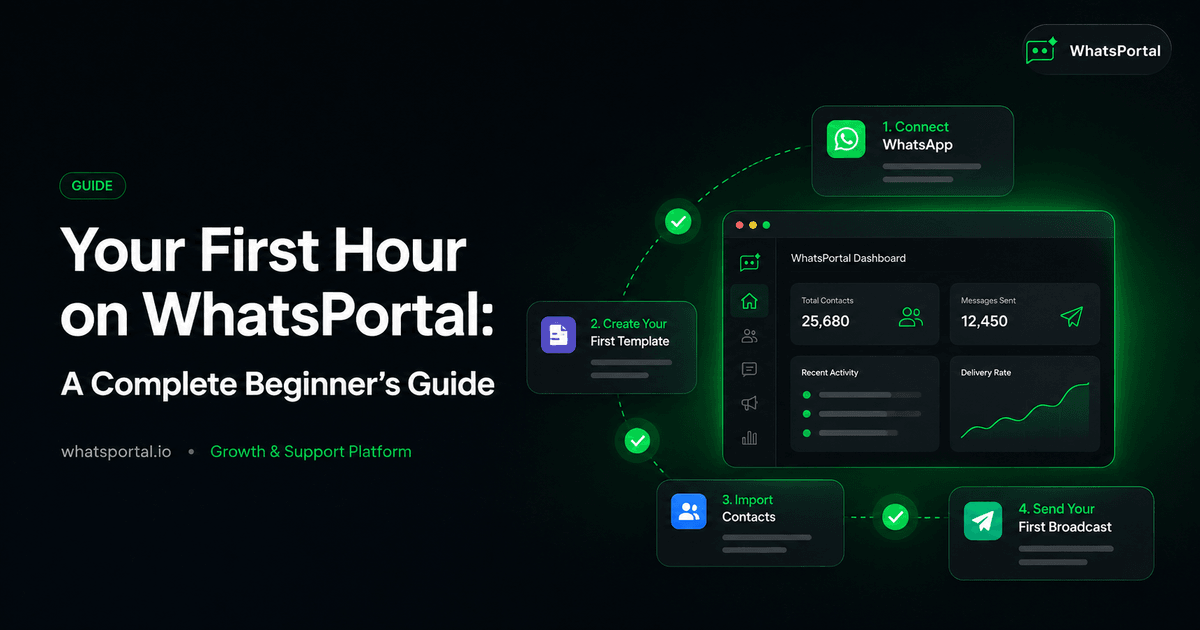
You've decided to talk to your customers on WhatsApp. Good call — it's where they already are.
But then you googled "WhatsApp Business API" and fell into a pit of acronyms. Business portfolios. WABAs. Template categories. Somewhere in there you started wondering if you needed to hire a developer.
You don't. Here's the whole thing, one step at a time. Give it an hour.
Before you begin: one thing to sort out
You need a phone number that isn't currently on WhatsApp.
Not your personal number. Not the number running your WhatsApp Business app. Meta won't let you use a number that's already active somewhere else — it'll stop you mid-setup, and that's a frustrating place to get stuck.
So grab a fresh SIM, or a number you've stopped using. It just needs to receive a call or an SMS once, for a verification code.
You'll also want a Facebook account handy. Any personal one works — you're using it to log in, not to post anything.
That's it. No documents. No paperwork. We'll come back to that later, and it's optional for longer than you'd think.
Step 1 — Create your account
Head to WhatsPortal and sign up. Name, email, phone, password.
Check your inbox for the verification email and click the link. Then switch back to the WhatsPortal tab — it notices on its own and lets you through. No need to click anything twice.
Step 2 — Your workspace appears
You don't have to build anything here. The moment you land on the dashboard, your workspace is already made and waiting for you.
You'll be asked to pick a plan. Choose Free. You can genuinely run your first campaigns on it, and switching later takes ten seconds. Don't spend energy on this decision today.
Step 3 — Connect WhatsApp
This is the real step. Everything before it was paperwork; everything after it is fun.
A popup will offer to connect your WhatsApp Business account — or find it under Settings → Workspace → WhatsApp. Click Connect.
A Meta window opens on top of WhatsPortal. This is Meta's own screen, not ours, and it'll ask you for a few things in a row:
- Your business details — name, website, country. If you don't have a website, your Instagram or Facebook page URL is fine.
- A display name — the name customers will see when you message them. Use your actual brand name, spelled the way people know it.
- Your phone number — the fresh one from earlier. Meta sends a code by SMS or call. Type it in.
Then the window closes by itself and you're back on WhatsPortal.
That's the hard part done. Take a breath.
Step 4 — Make sure it worked
Your WhatsApp settings page should now show a green-lit connection: your business account, your phone number, and your daily limit.
You'll probably see 250 conversations per day. That's Meta's starting allowance for every new business, and it's more than enough for now. (More on growing past it at the end.)
Step 5 — Add a card to Meta
Slightly annoying, genuinely important: your WhatsPortal plan and your WhatsApp message costs are two different bills.
WhatsPortal charges you for the software. Meta charges you directly for the messages, at a few paise per conversation. So Meta needs its own payment method, added on Meta's side.
If you skip this, your messages simply won't go out — and WhatsPortal will show you a red banner with a button that takes you straight to the right page. Do it now and save yourself the confusion later.
Step 6 — Create your first template
Here's a rule that surprises everyone: you can't message a customer out of the blue in your own words. Every conversation you start has to use a message Meta has pre-approved. It's called a template.
Once a customer replies, you can chat freely for 24 hours. It's only the opening line that needs approval.
Go to Templates → Create. You'll pick a category:
- Utility — order updates, appointment reminders, delivery alerts. Approved quickly, cheaper, high delivery rates.
- Marketing — offers, launches, re-engagement. Reviewed more carefully.
- Authentication — one-time passcodes only.
Start with a Utility template. Something small and honest, like an order confirmation. Write it, submit it, and go make tea. Approval usually takes a few minutes, sometimes a few hours.
Step 7 — Add your people
While you're waiting, go to Contacts and bring in your customer list — upload a spreadsheet or add a few by hand.
One thing worth saying plainly: only add people who've agreed to hear from you. Meta watches how customers react to your messages, and a list bought from somewhere will hurt your account faster than anything else you can do.
Step 8 — Send it
Template approved? Then go to Broadcast, pick your template, pick your contacts, and send.
Now open Conversations. This is your shared inbox — every reply lands here, your whole team can see it, and you can answer in plain words without any template at all.
Somebody's about to reply. That's the moment it stops feeling like setup and starts feeling like a business.
Growing past 250 a day
Your daily cap lifts on its own as you prove you're a real business sending messages people actually want. You've got two ways up to 2,000 a day:
- Verify your business with Meta — upload a document or two. In India that's usually your GST certificate, PAN, or incorporation certificate, plus a utility bill in the business's name from the last 12 months. It's done in Meta Business Portfolio, under Security Centre.
- Or just keep sending well. Deliver 2,000 good messages over 30 days without people blocking or reporting you, and Meta raises your limit anyway. No documents at all.
After 2,000 it keeps climbing — 10,000, then 100,000, then unlimited — based purely on how people respond to you. Send things worth receiving and the ceiling looks after itself.
When something goes sideways
| What you see | What's happening |
|---|---|
| "This number is already registered" | The number is still live on WhatsApp somewhere. Delete that account first, or use a different number. |
| Red payment banner | Meta can't charge your card. Add or fix your payment method on Meta's side. |
| Template rejected | Usually too promotional for the Utility category, or vague placeholder text. Reword and resubmit — there's no penalty. |
| Stuck at 250 a day | You're fine. Keep sending quality messages, or verify your business to jump ahead. |
That's the whole thing
Sign up. Connect. Add a card. Write one template. Send it.
Everything else WhatsPortal does — automated workflows, chatbots, Shopify order updates, AI replies — is built on top of what you just set up. None of it needs figuring out today.
Go send that first message. Your customers are already on the other end.
Start messaging smarter
WhatsPortal makes WhatsApp Business API simple for your whole team.
Get started free