

WhatsPortal Vendor Connect — Integration Guide
Complete step-by-step guide for vendors to embed WhatsApp Business Account onboarding and Facebook Page connection directly inside their own product using the WhatsPortal Vendor Connect API.
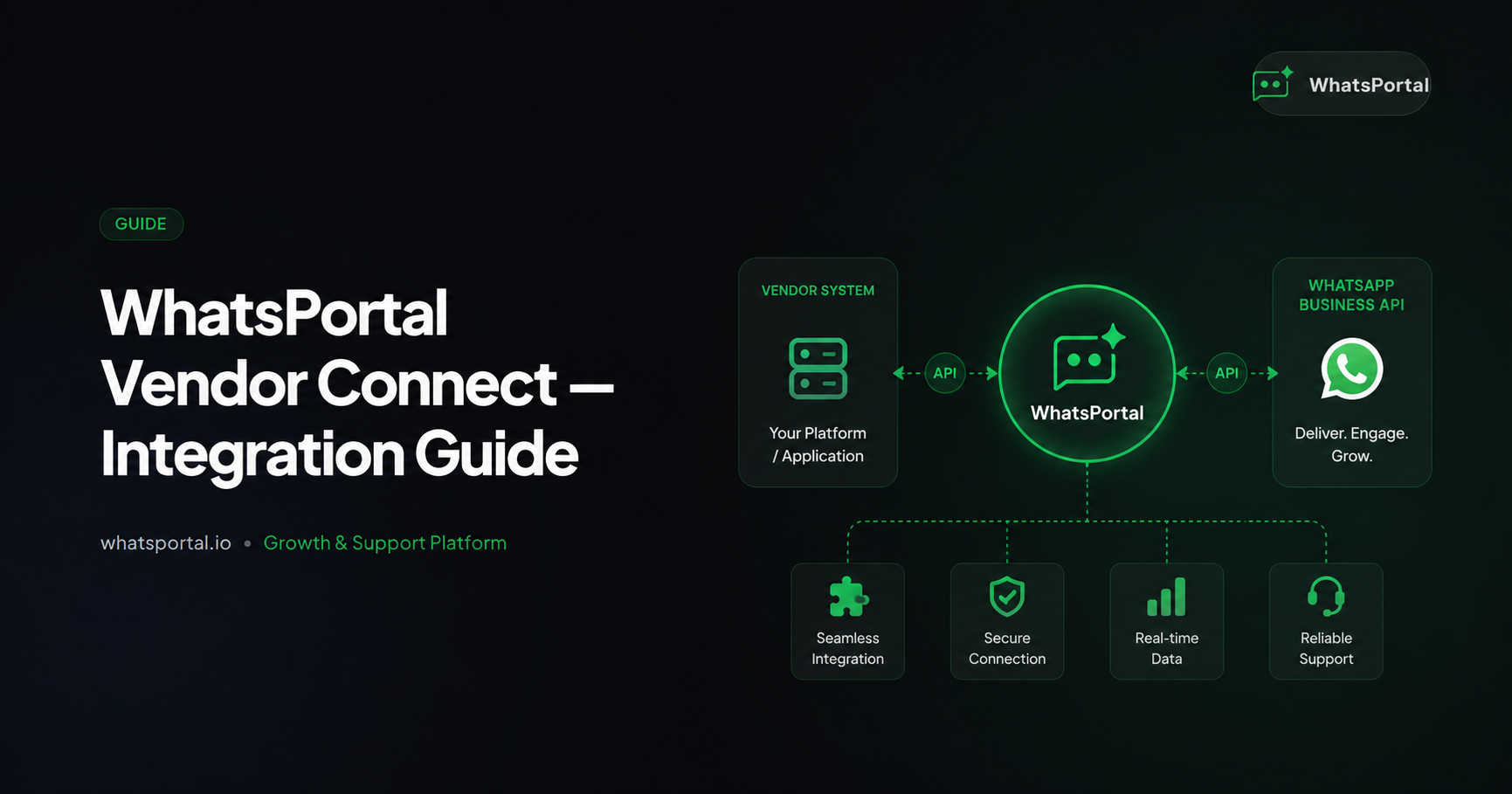
This guide walks you through integrating WhatsPortal Vendor Connect into your product. When you are done, your customers will be able to connect their WhatsApp Business account or Facebook Pages from inside your platform — without ever visiting the WhatsPortal dashboard.
WhatsPortal supports two integration types, both using the same API key and the same session-based flow:
| Integration | What the customer does | What you receive |
|---|---|---|
| WhatsApp Business API | Completes Meta Embedded Signup to authorize their WhatsApp Business account | account_id, waba_id, phone_number_id |
| Meta Page (Facebook Pages) | Logs in with Facebook and selects which Pages to connect | Array of connected pages with id, name, category |
The entire integration takes under 10 minutes of development time per flow.
Before You Start
Contact the WhatsPortal team to receive:
| Item | Description |
|---|---|
| API Key | A secret 64-character hex key for your server. Never expose this in frontend code. |
| Vendor ID | Your unique vendor identifier (for reference, not used in API calls directly). |
You will also need to tell us your allowed origin(s) — the exact URL(s) your frontend runs on, e.g. https://app.yourproduct.com. We whitelist these server-side. The postMessage result will only ever be sent to one of your registered origins.
Integration Overview
Every integration has three parts regardless of type:
- Backend — Your server calls
POST /api/vendor/sessionsto create a session token and get aconnect_url. - Frontend — Your frontend opens the
connect_urlin a new browser tab. - Frontend — Your frontend listens for a
postMessagefrom the tab with the result.
The only difference between WhatsApp and Meta Page is the integrationType field you pass in step 1, and the shape of the result you receive in step 3.
Part 1 — Backend: Create a Session
Your backend calls the WhatsPortal session endpoint before the user clicks the button. The session token is short-lived (10 minutes) and single-use.
Endpoint
POST https://www.whatsportal.io/api/vendor/sessions
Authorization: Bearer <your_api_key>
Content-Type: application/json
Request Body
{
  "workspaceName": "Acme Co",
  "externalId": "customer_123",
  "origin": "https://app.yourproduct.com",
  "integrationType": "whatsapp",
  "state": "csrf_token_or_any_value_you_want_echoed_back"
}
| Field | Required | Description |
|---|---|---|
workspaceName |
Yes | Display name for the workspace. Usually your customer's business name. Max 100 characters. |
externalId |
Yes | Your stable ID for this customer (user ID, org ID, etc.). Used for idempotency — calling again with the same externalId reuses the existing workspace. Max 64 characters, alphanumeric + hyphens/underscores/dots/spaces. No /. |
origin |
Yes | The exact scheme + host of the page that will listen for the postMessage. Must match one of your registered allowedOrigins. Example: https://app.yourproduct.com |
integrationType |
No | "whatsapp" (default) or "meta_page". Determines which connect page opens and which flow runs. |
state |
No | Any opaque string. Echoed back in the postMessage payload. Use it for CSRF protection. |
Response
{
  "session_token": "a3f9...64-char-hex-string...1c2d",
  "connect_url": "/vendor/connect/whatsapp?session_token=a3f9...1c2d"
}
| Field | Description |
|---|---|
session_token |
The raw token. Valid for 10 minutes. |
connect_url |
The full path to open in a new tab. For whatsapp → /vendor/connect/whatsapp?session_token=.... For meta_page → /vendor/connect/meta-page?session_token=.... Always use this URL — don't construct it manually. |
Example (Node.js)
// WhatsApp session
app.post('/api/whatsapp-session', async (req, res) => {
  const { customerId, customerName } = req.user

  const response = await fetch('https://www.whatsportal.io/api/vendor/sessions', {
    method: 'POST',
    headers: {
      'Content-Type': 'application/json',
      'Authorization': `Bearer ${process.env.WHATSPORTAL_API_KEY}`,
    },
    body: JSON.stringify({
      workspaceName: `${customerName}`,
      externalId: String(customerId),
      origin: 'https://app.yourproduct.com',
      integrationType: 'whatsapp',
      state: generateCsrfToken(),
    }),
  })

  const data = await response.json()
  if (!response.ok) return res.status(500).json({ error: data.error })
  res.json({ connect_url: data.connect_url })
})

// Meta Page session — same endpoint, different integrationType
app.post('/api/meta-page-session', async (req, res) => {
  const { customerId, customerName } = req.user

  const response = await fetch('https://www.whatsportal.io/api/vendor/sessions', {
    method: 'POST',
    headers: {
      'Content-Type': 'application/json',
      'Authorization': `Bearer ${process.env.WHATSPORTAL_API_KEY}`,
    },
    body: JSON.stringify({
      workspaceName: `${customerName}`,
      externalId: String(customerId),   // same externalId → same workspace
      origin: 'https://app.yourproduct.com',
      integrationType: 'meta_page',
      state: generateCsrfToken(),
    }),
  })

  const data = await response.json()
  if (!response.ok) return res.status(500).json({ error: data.error })
  res.json({ connect_url: data.connect_url })
})
Tip: Using the same
externalIdfor both WhatsApp and Meta Page sessions connects both to the same WhatsPortal workspace. This is the recommended pattern — one workspace per customer, multiple integrations within it.
Error Responses
| Status | Meaning |
|---|---|
401 |
API key is missing, invalid, or your vendor account is inactive. |
400 |
origin not in your allowedOrigins, or externalId/workspaceName failed validation. |
500 |
Server error on our side. Retry once. |
Part 2 — Frontend: Open the Connect Tab
Critical rule: window.open must be called synchronously inside a click event handler. Never await anything before calling window.open — browsers treat async-initiated window.open calls as programmatic popups and block them.
The correct pattern:
- User clicks button → synchronously open the tab (the tab shows a loading state while you fetch the session).
- In the background, fetch the session from your backend and navigate the tab to the final URL.
Here is the complete, production-ready integration snippet. It works for both integration types — just swap the backend endpoint:
const WHATSPORTAL_ORIGIN = 'https://www.whatsportal.io'

/**
 * @param {string} sessionEndpoint - Your backend endpoint that returns { connect_url }
 *   e.g. '/api/whatsapp-session' or '/api/meta-page-session'
 * @param {function} onSuccess - Called with the postMessage result on success
 * @param {function} onAbandoned - Called when the user closes the tab without completing
 */
async function initiateVendorConnect(sessionEndpoint, onSuccess, onAbandoned) {
  // Fetch session + connect_url from YOUR backend first
  const { connect_url } = await fetch(sessionEndpoint).then(r => r.json())

  // Open the tab SYNCHRONOUSLY from the click handler
  const tab = window.open(
    `${WHATSPORTAL_ORIGIN}${connect_url}`,
    '_blank'
  )

  if (!tab) {
    showError('Please allow popups for this site and try again.')
    return
  }

  // Detect tab closed without completing
  const abandonTimer = setInterval(() => {
    if (tab.closed) {
      clearInterval(abandonTimer)
      onAbandoned()
    }
  }, 500)

  // Listen for result
  function handleMessage(event) {
    if (event.origin !== WHATSPORTAL_ORIGIN) return
    if (!event.data?.type?.startsWith('whatsportal:connect:')) return

    clearInterval(abandonTimer)
    window.removeEventListener('message', handleMessage)

    if (event.data.type === 'whatsportal:connect:success') {
      onSuccess(event.data)
    }
  }

  window.addEventListener('message', handleMessage)
}

// WhatsApp button
document.getElementById('connect-whatsapp-btn').addEventListener('click', () => {
  void initiateVendorConnect(
    '/api/whatsapp-session',
    (data) => console.log('WhatsApp connected:', data.account_id),
    ()     => console.log('WhatsApp connect abandoned'),
  )
})

// Meta Page button
document.getElementById('connect-meta-page-btn').addEventListener('click', () => {
  void initiateVendorConnect(
    '/api/meta-page-session',
    (data) => console.log('Pages connected:', data.pages),
    ()     => console.log('Meta Page connect abandoned'),
  )
})
Pre-fetch pattern (zero-delay tab open)
If you want the tab to open instantly on click, pre-warm the session token on hover:
let prefetchedConnectUrl = null

connectBtn.addEventListener('mouseenter', async () => {
  if (prefetchedConnectUrl) return
  const { connect_url } = await fetch('/api/whatsapp-session').then(r => r.json())
  prefetchedConnectUrl = connect_url
})

connectBtn.addEventListener('click', () => {
  const url = prefetchedConnectUrl ?? ''
  prefetchedConnectUrl = null  // consume it; next hover prefetches fresh

  const tab = window.open(`${WHATSPORTAL_ORIGIN}${url}`, '_blank')
  // ... rest of listener setup
})
Part 3 — Handle the Result
WhatsApp success payload
{
  type:            'whatsportal:connect:success',
  account_id:      string,   // Stable WhatsPortal workspace ID — store this permanently
  waba_id:         string,   // Meta WhatsApp Business Account ID
  phone_number_id: string,   // Meta Phone Number ID
  state?:          string,   // Echoed from your session `state` parameter
}
Meta Page success payload
{
  type:   'whatsportal:connect:success',
  pages:  Array<{
    id:       string,   // Facebook Page ID
    name:     string,   // Page display name
    category: string,   // e.g. "Software", "Local business"
  }>,
  state?: string,       // Echoed from your session `state` parameter
}
Note: The
typefield is alwayswhatsportal:connect:successfor both flows. Distinguish them by checking which fields are present: WhatsApp results haveaccount_id, Meta Page results havepages.
Handling both in one listener
function handleMessage(event) {
  if (event.origin !== WHATSPORTAL_ORIGIN) return
  if (event.data?.type !== 'whatsportal:connect:success') return

  if (event.data.account_id) {
    // WhatsApp connect
    const { account_id, waba_id, phone_number_id, state } = event.data
    verifyState(state)
    await saveWhatsAppConnection({ account_id, waba_id, phone_number_id })

  } else if (event.data.pages) {
    // Meta Page connect
    const { pages, state } = event.data
    verifyState(state)
    await savePageConnections(pages)
  }
}
The account_id
For WhatsApp connections, the account_id is a stable, permanent identifier for this customer's WhatsApp Business workspace. Store it in your database alongside the customer record.
Idempotency guarantee: If the same customer goes through the connect flow again with the same externalId, they receive the same account_id. This is true for both WhatsApp and Meta Page sessions — the workspace is always the same for a given externalId.
React / Next.js Example
import { useState, useCallback } from 'react'

const WHATSPORTAL_ORIGIN = 'https://www.whatsportal.io'

type IntegrationType = 'whatsapp' | 'meta_page'

function useVendorConnect(type: IntegrationType) {
  const [status, setStatus] = useState<'idle' | 'connecting' | 'success' | 'error'>('idle')

  const handleClick = useCallback(async () => {
    const endpoint = type === 'whatsapp' ? '/api/whatsapp-session' : '/api/meta-page-session'
    const { connect_url } = await fetch(endpoint).then(r => r.json())

    const tab = window.open(`${WHATSPORTAL_ORIGIN}${connect_url}`, '_blank')
    if (!tab) { setStatus('error'); return }

    setStatus('connecting')

    const abandonTimer = setInterval(() => {
      if (tab.closed) { clearInterval(abandonTimer); setStatus('idle') }
    }, 500)

    function handleMessage(event: MessageEvent) {
      if (event.origin !== WHATSPORTAL_ORIGIN) return
      if (event.data?.type !== 'whatsportal:connect:success') return

      clearInterval(abandonTimer)
      window.removeEventListener('message', handleMessage)
      setStatus('success')

      if (type === 'whatsapp') {
        void fetch('/api/save-whatsapp', {
          method: 'POST',
          headers: { 'Content-Type': 'application/json' },
          body: JSON.stringify({ account_id: event.data.account_id }),
        })
      } else {
        void fetch('/api/save-pages', {
          method: 'POST',
          headers: { 'Content-Type': 'application/json' },
          body: JSON.stringify({ pages: event.data.pages }),
        })
      }
    }

    window.addEventListener('message', handleMessage)
  }, [type])

  return { status, handleClick }
}

export function ConnectWhatsAppButton() {
  const { status, handleClick } = useVendorConnect('whatsapp')
  return (
    <button onClick={() => void handleClick()} disabled={status === 'connecting'}>
      {status === 'idle' && 'Connect WhatsApp Business'}
      {status === 'connecting' && 'Connecting...'}
      {status === 'success' && 'Connected ✓'}
      {status === 'error' && 'Try Again'}
    </button>
  )
}

export function ConnectMetaPageButton() {
  const { status, handleClick } = useVendorConnect('meta_page')
  return (
    <button onClick={() => void handleClick()} disabled={status === 'connecting'}>
      {status === 'idle' && 'Connect Facebook Pages'}
      {status === 'connecting' && 'Connecting...'}
      {status === 'success' && 'Connected ✓'}
      {status === 'error' && 'Try Again'}
    </button>
  )
}
Retry & Failure Scenarios
| Scenario | What happens | What you should do |
|---|---|---|
| Customer closes tab without completing | abandonTimer detects tab.closed |
Show a retry button. Request a fresh session. |
| Session token expires (10 min) | Tab shows "Session has expired" message | Create a new session token and open a new tab. |
window.open returns null |
Browser blocked the popup | Show error: "Please allow popups for this site." |
| Network error during Meta OAuth | Tab shows an error toast; customer can retry | Session remains valid; same tab can be retried. |
| Customer denies Facebook permissions | Tab returns to ready state (no postMessage sent) | Your abandonTimer will eventually fire when they close the tab. |
Security Checklist
Before going live, verify every item below.
| Check | Why it matters |
|---|---|
| API key is in a server-side environment variable | If it leaks to the frontend, anyone can create sessions under your vendor account. |
event.origin !== 'https://www.whatsportal.io' check is in place |
Without this, a malicious page could send a fake postMessage to your window. |
state parameter is a random CSRF token, not a user ID |
The state is echoed back. Validate it, but don't use it to identify users — use account_id or pages instead. |
account_id is stored server-side |
The account_id is your permanent reference. It must survive page reloads and device changes. |
allowedOrigins registered with WhatsPortal is HTTPS |
Never register an http:// origin for production. |
window.open is called from inside a click handler |
If called programmatically outside a user gesture, browsers block it. |
Testing Your Integration
Local development
- Register
http://localhost:3000(or your local port) as an allowed origin with your WhatsPortal account manager. - Use a real Meta business account in test mode. WhatsPortal does not provide a sandbox environment for Meta OAuth.
- After a successful WhatsApp connect, verify:
account_id,waba_id,phone_number_idarrive in yourpostMessagehandler.- Calling the session endpoint again with the same
externalIdreturns a new token but resolves to the sameaccount_id.
- After a successful Meta Page connect, verify:
pagesarray arrives withid,name,categoryfor each connected page.- The same
externalIdused for WhatsApp also maps to the same workspace.
Testing checklist
WhatsApp:
- Tab opens and shows your vendor logo and name
- Meta Embedded Signup popup appears
- Success
postMessagearrives withaccount_id,waba_id,phone_number_id -
stateis echoed back correctly - Closing without completing triggers the abandon handler
- Second session with same
externalIdreturns the sameaccount_id
Meta Page:
- Tab opens and shows your vendor logo and name
- Facebook login popup appears with page selection
- Success
postMessagearrives withpagesarray -
stateis echoed back correctly - Closing without completing triggers the abandon handler
- Sessions for WhatsApp and Meta Page with the same
externalIdrefer to the same workspace
Frequently Asked Questions
Can I call POST /api/vendor/sessions from the frontend?
No. The endpoint requires your API key in the Authorization header. Your API key must never be in frontend JavaScript. Always call this from your backend and return only the connect_url to the frontend.
Can a customer connect both WhatsApp and a Facebook Page?
Yes — use the same externalId for both session calls. Both integrations will be connected to the same WhatsPortal workspace. The customer goes through two separate flows (two button clicks, two tabs), but the result is a single workspace with both integrations active.
What if the customer's session token expires before they complete the flow?
The tab will show an "expired" message. Offer a retry button that calls your backend for a fresh session token and opens a new tab.
Will calling the same externalId twice create two workspaces?
No. WhatsPortal uses the externalId to deduplicate. The first call creates the workspace; every subsequent call with the same externalId reuses it. The account_id you receive will always be the same for a given externalId.
Can one customer connect multiple WhatsApp numbers?
Each externalId maps to one workspace. To support multiple numbers per customer, use distinct externalId values (e.g. customer_123_wa_1, customer_123_wa_2).
Can I use a popup instead of a new tab?
No. The WhatsApp connect tab uses Meta's Embedded Signup which calls FB.login() internally. The Meta Page connect tab also calls FB.login() directly. FB.login() opens a popup of its own. Most browsers (especially Safari) block nested popups. Opening WhatsPortal as a new tab (no width/height in window.open) avoids this entirely.
Do my customers need a WhatsPortal account?
No. Your customers interact only with the WhatsPortal connect tab (branded as your product) and Meta's OAuth dialog. They never sign up for or log into WhatsPortal directly.
Is there a webhook alternative to postMessage?
Not in the current phase. postMessage is the primary delivery mechanism. A server-side webhook option (for headless or mobile integrations) is on the roadmap.
Quick Reference
Session endpoint
POST https://www.whatsportal.io/api/vendor/sessions
Authorization: Bearer <api_key>
Content-Type: application/json

{
  "workspaceName":   "string (required, max 100 chars)",
  "externalId":      "string (required, max 64 chars, no /)",
  "origin":          "string (required, must match allowedOrigins)",
  "integrationType": "whatsapp" | "meta_page"  (optional, default: "whatsapp"),
  "state":           "string (optional, echoed back in postMessage)"
}

Response 200:
{
  "session_token": "64-char hex",
  "connect_url":   "/vendor/connect/whatsapp?session_token=..."
                   "/vendor/connect/meta-page?session_token=..."
}
Connect tab URLs
| Type | URL |
|---|---|
https://www.whatsportal.io/vendor/connect/whatsapp?session_token=<token> |
|
| Meta Page | https://www.whatsportal.io/vendor/connect/meta-page?session_token=<token> |
Open with window.open(url, '_blank') — no width/height.
postMessage success shapes
// WhatsApp
{
  type:            'whatsportal:connect:success',
  account_id:      'wp_...',   // store this permanently
  waba_id:         '...',
  phone_number_id: '...',
  state:           '...'       // only present if you passed state
}

// Meta Page
{
  type:   'whatsportal:connect:success',
  pages:  [{ id: '...', name: '...', category: '...' }],
  state:  '...'                // only present if you passed state
}
For integration support, reach out to the WhatsPortal partnerships team. Include your vendor ID and a description of the issue.
Start messaging smarter
WhatsPortal makes WhatsApp Business API simple for your whole team.
Get started free