

Trigger WhatsPortal Workflows via Incoming Webhooks
Learn how to use incoming webhooks to trigger automated WhatsApp messages in WhatsPortal from external CRMs, Shopify stores, and Zapier flows.

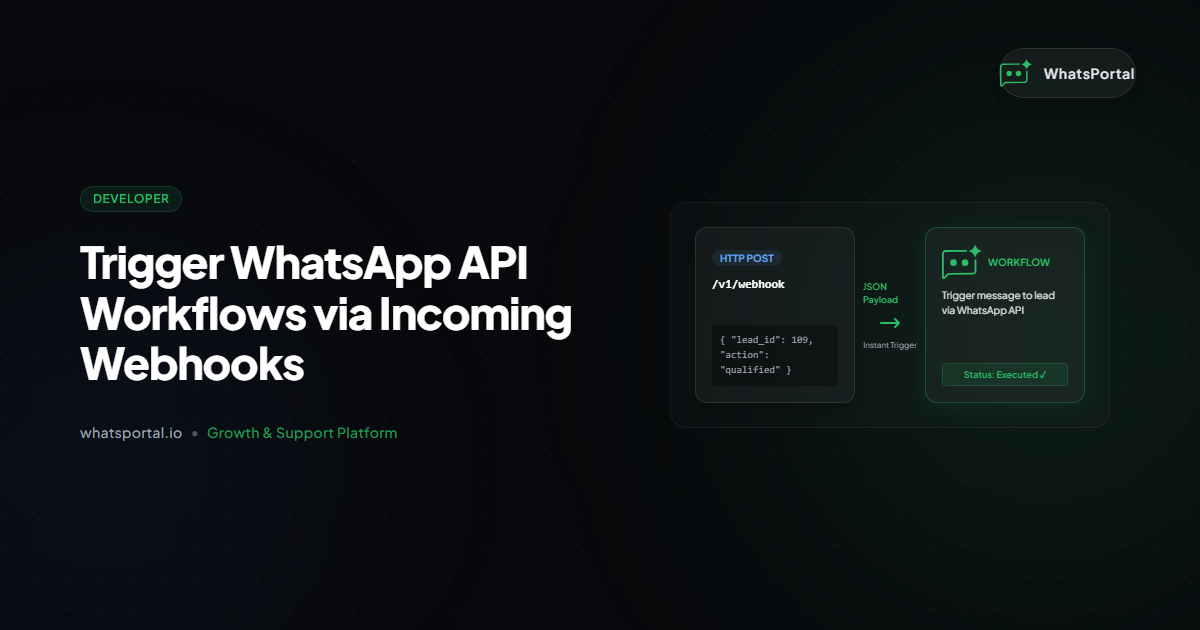
Most workflow automation tools make you choose from a fixed list of supported apps. If your system isn't on the list, you're out of luck.
WhatsPortal's Incoming Webhook trigger removes that constraint entirely. Any system that can make an HTTP POST request — your e-commerce platform, your CRM, your internal backend, Zapier, n8n, Make — can fire a WhatsPortal workflow and send a WhatsApp message within seconds.
The integration is one HTTP request. The recipient gets a WhatsApp message. Everything in between is handled by WhatsPortal.
1. What the Incoming Webhook Trigger Is
Every WhatsPortal workflow starts with a trigger node — the event that kicks things off. The built-in triggers cover common scenarios: a new contact is created, a conversation is assigned, a campaign is sent.
The Incoming Webhook trigger is different. It doesn't wait for something to happen inside WhatsPortal. It waits for you — or any external system — to call a URL.
When you add this trigger to a workflow, WhatsPortal generates a unique endpoint for your workspace:
POST https://www.whatsportal.io/api/webhooks/incoming/{workspaceId}
Hit that URL with any JSON body, and the workflow fires. Every field you send in the request body becomes available inside the workflow as a Liquid variable. Your downstream nodes — send a WhatsApp message, update a contact, apply a filter, wait a delay — can all reference the data you sent.
The core idea: You're pushing events into WhatsPortal from the outside. WhatsPortal takes that data and turns it into a WhatsApp action.
This is the integration primitive that connects WhatsPortal to everything else.
2. Setting It Up
Step 1: Create a workflow with the Incoming Webhook trigger
In WhatsPortal, go to Workflows → New Workflow. On the trigger selection screen, choose Incoming Webhook. Save the workflow (you don't need to add downstream nodes yet).
Step 2: Get your workspace ID and webhook URL
Your workspace ID is in the URL when you're logged into WhatsPortal, or in Settings → General. Your full webhook URL is:
https://www.whatsportal.io/api/webhooks/incoming/{workspaceId}
Step 3: Generate an API token
Go to Settings → Integrations → Incoming Webhook. Click Generate Token.
WhatsPortal creates a 64-character hex token tied to your workspace. This token goes in every request as the x-api-key header. Keep it secret — it authorizes access to trigger any workflow in your workspace.
Token behavior:
- If a token is configured: all requests must include it in
x-api-keyor they are rejected- If no token is configured: the endpoint accepts requests from anyone — fine for testing, not for production
- Regenerating a token immediately invalidates the old one — any integration using the old token stops working instantly
- Deleting the token removes authentication entirely
Set the token once. Store it in your environment variables. Do not hard-code it in client-side code.
3. Sending Your First Webhook Request
The request format is simple:
POST https://www.whatsportal.io/api/webhooks/incoming/{workspaceId}
x-api-key: {your_token}
Content-Type: application/json

{ any valid JSON body }
WhatsPortal responds immediately with:
{ "received": true }
That response means the request was accepted and queued. The workflow runs asynchronously — you don't wait for it. Your system gets the response in milliseconds regardless of how long the workflow takes.
curl
curl -X POST https://www.whatsportal.io/api/webhooks/incoming/ws_abc123 \
  -H "x-api-key: your_64char_token_here" \
  -H "Content-Type: application/json" \
  -d '{
    "order_id": "ORD-9921",
    "customer": {
      "name": "Priya Sharma",
      "phone": "919876543210"
    },
    "total": 1240,
    "status": "confirmed"
  }'
Node.js
const response = await fetch(
  "https://www.whatsportal.io/api/webhooks/incoming/ws_abc123",
  {
    method: "POST",
    headers: {
      "x-api-key": process.env.WHATSPORTAL_WEBHOOK_TOKEN,
      "Content-Type": "application/json",
    },
    body: JSON.stringify({
      order_id: "ORD-9921",
      customer: {
        name: "Priya Sharma",
        phone: "919876543210",
      },
      total: 1240,
      status: "confirmed",
    }),
  }
);

const data = await response.json();
// { received: true }
Python
import requests
import os

response = requests.post(
    "https://www.whatsportal.io/api/webhooks/incoming/ws_abc123",
    headers={
        "x-api-key": os.environ["WHATSPORTAL_WEBHOOK_TOKEN"],
        "Content-Type": "application/json",
    },
    json={
        "order_id": "ORD-9921",
        "customer": {
            "name": "Priya Sharma",
            "phone": "919876543210",
        },
        "total": 1240,
        "status": "confirmed",
    },
)

print(response.json())  # {'received': True}
On response time: The
{ "received": true }response is non-blocking. WhatsPortal queues the workflow execution and returns immediately. Your system should not interpret the response as confirmation that the WhatsApp message was delivered — only that the trigger was accepted.
4. Using Webhook Data Inside the Workflow
Once your trigger fires, everything you sent in the request becomes available inside downstream nodes via Liquid templates.
What's available
| Variable | What it contains |
|---|---|
webhook.payload.* |
Every field from your JSON request body |
webhook.body.* |
Alias for webhook.payload.* — same data |
webhook.query.* |
URL query parameters (e.g., ?source=shopify) |
webhook.headers.* |
HTTP headers sent with the request |
system.now |
ISO 8601 timestamp of when the workflow was triggered |
Accessing nested fields
Liquid dot notation works for deeply nested JSON. Given this payload:
{
  "order_id": "ORD-9921",
  "customer": {
    "name": "Priya Sharma",
    "phone": "919876543210"
  },
  "items": [
    { "name": "Wireless Headphones", "qty": 1 }
  ]
}
You can reference:
{{ webhook.payload.order_id }}
{{ webhook.payload.customer.name }}
{{ webhook.payload.customer.phone }}
{{ webhook.payload.items[0].name }}
{{ webhook.query.source }}
{{ system.now }}
In a WhatsApp message node
Use these variables anywhere in your message template. A "Send Message" node body might look like:
Hi {{ webhook.payload.customer.name }}, your order {{ webhook.payload.order_id }}
has been confirmed! Total: ₹{{ webhook.payload.total }}.

We'll notify you when it ships.
Tip: Make sure the phone number field in your payload matches the format WhatsPortal expects — country code followed by the number, no
+prefix, no spaces.919876543210for an Indian number, not+91-98765-43210.
5. Real-World Use Cases
E-commerce: Order confirmation on WhatsApp
Your Shopify/WooCommerce store fires a webhook when an order is placed. Map the order fields to a WhatsPortal webhook call. The customer gets an order confirmation on WhatsApp before the page even finishes loading.
No plugin needed. No pre-built integration. One POST request.
CRM: Lead follow-up the moment a form is submitted
A new lead fills your Typeform or Google Form. Your Zapier zap catches the submission and POSTs it to WhatsPortal. The lead gets a WhatsApp message within 30 seconds — before a competitor even knows they exist.
Why it matters: Speed-to-lead has an outsized impact on conversion. The first reply often wins the customer. A 5-minute response outperforms a 60-minute one by 100x in close rates.
Support: Ticket creation alerts
Your support desk (Freshdesk, Zendesk, or a homegrown system) creates a ticket. It POSTs to WhatsPortal. The customer gets a "we received your request" message on WhatsApp with their ticket ID. No email open rate required.
Internal alerts: Operations and logistics
A shipment status changes in your logistics system. An inventory item hits reorder threshold. A payment fails. All of these can POST to WhatsPortal and trigger a WhatsApp message to the right person — an ops manager, a sales rep, or a customer.
No-code automation: Zapier, Make, n8n
These platforms have a generic "HTTP Request" or "Webhook" action. Point it at your WhatsPortal webhook URL, set the headers, map the fields. You now have WhatsApp as an output channel for any workflow in any of these tools — without a native WhatsPortal integration ever being required.
| Platform | How to connect |
|---|---|
| Zapier | Use the "Webhooks by Zapier" action → POST |
| Make (formerly Integromat) | Use the "HTTP → Make a Request" module |
| n8n | Use the "HTTP Request" node |
| Retool | Use the "Resource → REST API" query |
6. Security Best Practices
Always configure a token in production
An endpoint without a token is publicly accessible. Anyone who discovers the URL can trigger your workflows. This is fine for local testing. It is not acceptable in production.
Generate a token before you ship anything real.
Rotate your token on a schedule — or after any suspected exposure
Go to Settings → Integrations → Incoming Webhook → Regenerate Token. The old token is invalidated the instant you regenerate. Update every integration that uses it before rotating — or accept a brief interruption.
On exposure: If you ever accidentally commit your token to a public repository, a public Slack message, or a client-facing document — regenerate it immediately. Don't delete the old one first. Regenerate. The old one is dead.
Store the token in environment variables, never in source code
# .env
WHATSPORTAL_WEBHOOK_TOKEN=your_64char_token_here
// Good
headers: { "x-api-key": process.env.WHATSPORTAL_WEBHOOK_TOKEN }

// Never do this
headers: { "x-api-key": "a3f9b2c1d4e5..." }
Validate your payload before sending
WhatsPortal accepts any valid JSON. That means it won't reject a request with a missing phone number — it will just fire the workflow with webhook.payload.customer.phone resolving to empty. Add validation in your sending system before the POST.
Use HTTPS only
The endpoint is always https://. Never use plain HTTP. All data in transit is encrypted.
7. Workflow Matching Behavior
A few things worth knowing about how WhatsPortal handles incoming webhooks at the workspace level:
- All active workflows with the Incoming Webhook trigger in your workspace will fire when the endpoint is hit
- There is no per-workflow URL — one endpoint, all matching workflows
- If you have multiple webhook-triggered workflows and want only one to run under certain conditions, use Filter nodes at the start of each workflow to gate on payload fields (e.g.,
webhook.payload.event_type == "order.confirmed") - The "Run all matches" workspace setting controls whether one or all matching workflows execute — check your workspace settings if you're seeing unexpected behavior
Recommended pattern: Include an
event_typefield in every webhook payload. Use a Filter node as the first node after the trigger to check it. This keeps each workflow focused on one event type and makes debugging straightforward.
{
  "event_type": "order.confirmed",
  "order_id": "ORD-9921",
  ...
}
The Bigger Picture
A WhatsApp Business API connection used to mean building a direct integration with Meta's API — or buying a SaaS tool that had a native connector for the specific platform you used.
The Incoming Webhook trigger changes that calculus.
It means WhatsPortal can receive signals from anything — any platform, any backend, any automation tool — and translate those signals into WhatsApp actions. The WhatsApp message becomes the output layer of your entire stack, not just a standalone channel.
Your e-commerce platform, CRM, support desk, and internal tools don't need to know anything about WhatsApp. They just need to fire a POST request when something happens.
Final Thought
The Incoming Webhook trigger is one of those features that looks simple on the surface — it's just an HTTP endpoint — but unlocks an enormous amount of capability once you internalize what it means.
Every event in your business that matters to a customer or an operator can now reach them on WhatsApp. Not via email. Not via SMS. On the channel they actually respond to.
Set up the token. Add the POST call to your first integration. Build the workflow.
You'll have WhatsApp messages firing from your existing systems within the hour.
Start messaging smarter
WhatsPortal makes WhatsApp Business API simple for your whole team.
Get started free